
|
Build Automator Documentation
Project Variables |
|
Previous
Top
Next
|
|
|
Each project can have it's own variables. These variables can be used to store data and add information into the various update forms. When you select a variable to use in one of the update windows, you will also have access to system variables which contain certain system related information such as date, time and the various special folder locations, such as Program Files, My Documents etc. etc.
You can click on the list headers to sort the list. By default Build Automator adds several project variables to the list and those variables are kept updated internally. Those variables all start with "$_Proj" and they include the name of the project, when it was created, last updated, name of the project file, etc. By default the variables are listed in alphabetical order, so the project variables end up at the top.
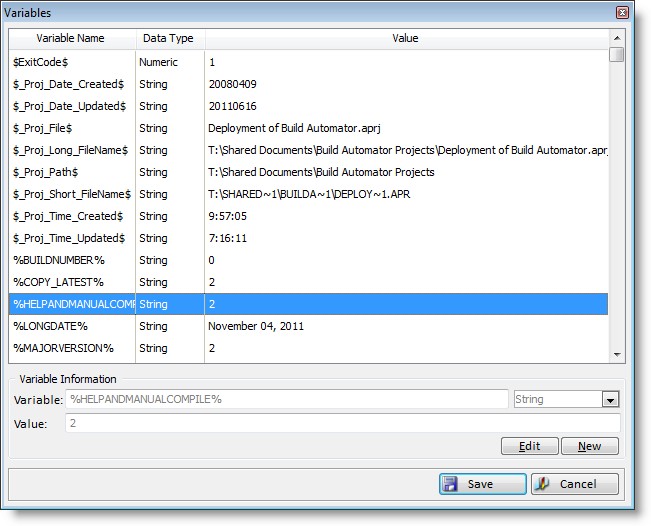
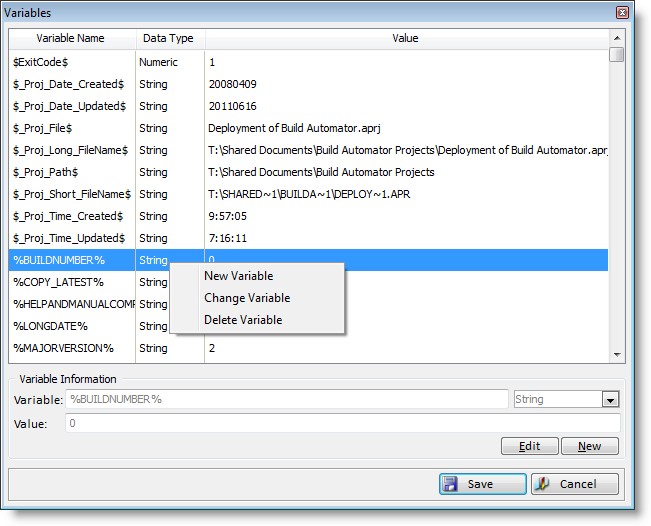
To create a new variable, you can click on the New button, hit the Insert key on the keyboard or right click on the list and select "New Variable".
To edit the selected variable, you can click the Edit button, hit the Enter key on the keyboard or right click on the list and select "Change Variable".
To delete the selected variable hit the Delete key on the keyboard or right click on the list and select "Delete Variable". You will be prompted to confirm deletion of the variable.
To cancel editing or inserting a new variable, press the Esc key or click the Cancel button next to the Edit button. The Alt-C key on the keyboard also cancels the editing/insert.
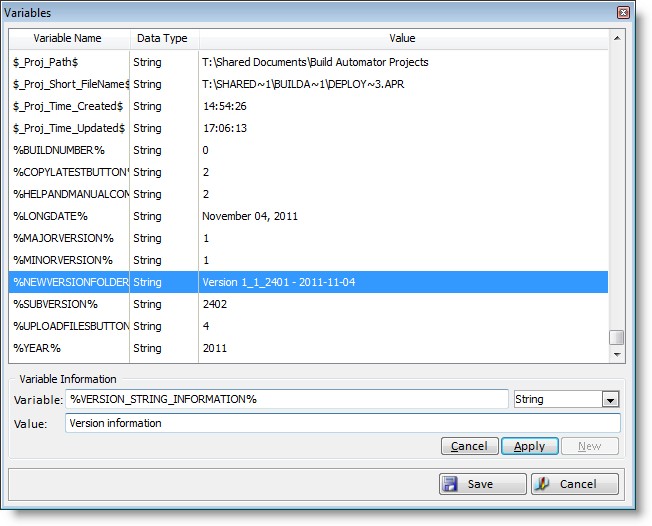
All variables that you create must start and end with a percent character - %. This uniquely identifies them in entries so the variable can be expanded to it's correct value. System Variables start and end with a dollar character - $. If you do not place the % before and after the variable name, the Build Automator™ will do it for you. If you notice that the variable name is not being formed correctly, please report it to our bug tracking system at http://www.buildautomator.com/bugtracker.php
The Variable name, including the two % at the beginning and end, is limited to 40 characters. The static variable value is currently limited to 255 characters. Variable names are forced upper case. Note that SOME system variables are NOT upper case, such as $ExitCode$, $ToDay$ and $Now$ as well as the $_Proj_ variables. You do not have to type the enclosing %, Build Automator will add them as you accept the variable name.
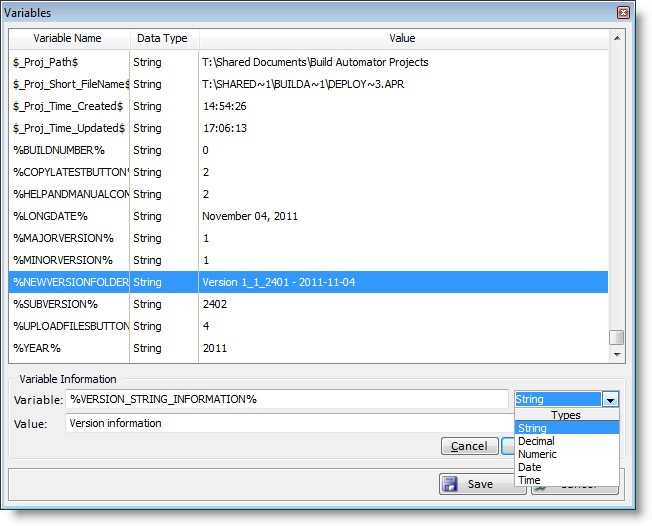
Variables can have one of 5 data types, String, Decimal, Numeric, Date or Time. When you are working with Actions, you can also enter variables to use in certain actions. These variables always default to the String type and cannot be changed when you enter them. You can, however, change them in the project variables window to the proper data type if String is not suitable.
The formats are hard coded to provide 100% consistency in data types.
String @s255
Decimal @n-20.4
Integer @n-14
Date @d10-
Time @t4
Data Type |
Formatting |
Explanation |
String |
@s255 |
255 character string without any special formatting |
Decimal |
@n-20.4 |
Decimal format with 11 digits, a period and 4 decimal digits. Grouping by comma is by default. Example: 12,345,678,901.1234 |
Integer |
@n-14 |
Signed Integer (31bit) format with 14 digits. Grouping by comma is by default. Example: 2,147,483,647 |
Date |
@d10- |
Date formatted as YYYY-MM-DD. This format is used as default as it allows dates to be used in filenames or pathnames. |
Time |
@t4 |
Time formatted as HH:MM:SS. This format is not suitable for use in filenames and pathnames. |