
|
Build Automator Documentation
Call MS Build |
|
Previous
Top
Next
|
|
|
MS-Build is a command line compiler that is used by many programming languages to compile projects and solutions in various programming languages. The Build Automator™ includes an action that can call the selected MS-Build version to compile your project or solution. Note that the Build Automator™ does NOT build your solution or project files for you, it simply takes your existing solution or project and MS-Build then compiles it using the related compiler. The Build Automator™ can work with any MS-Build Solution files (.sln files) and several project files, such as C#, Visual Basic, Visual C++, Delphi and Clarion.
NOTE: Clarion developers using Clarion 7 and up: As of August 1st, 2014, Build Automator does support the use of /ConfigDir to set the folder for the Clarion configuration files. This allows setting up multiple environments with different settings. We have added an option so this can be used with both ClarionCL.exe as well as with MS-Build!
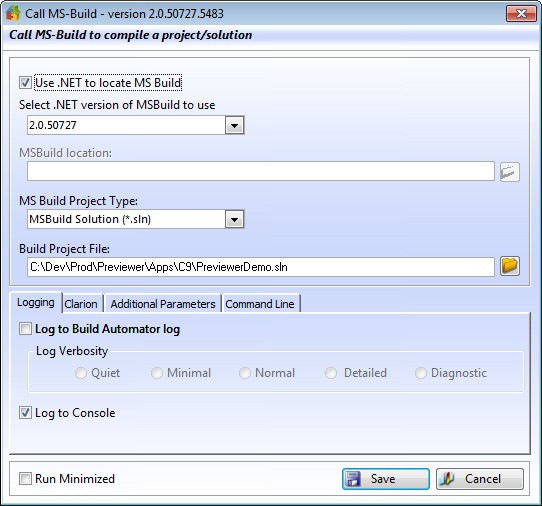
Properties |
Explanation |
Use .NET to locate... |
If checked, you can select what version of the .NET framework is installed and the Build Automator™ will use that selection to locate MS-Build |
Select .NET version... |
Select the appropriate version from the dropdown |
MS-Build location |
Option for you to manually select the MS-Build that you want to use. Use the button on the right of the entry to select the MS-Build. |
Project Type |
Select the MS-Build project type that you want to use. This is used when you select the solution or project to specify the correct file extension. |
Build Project File |
This is the path and name of the solution or project file that you want to compile. Use the button on the right to select the MS-Build |
Logging |
On this tab you can specify if you want the MS-Build log to be added into the Build Automator log and the verbosity of the MS-Build log. |
On this tab you can specify what version of the IDE to use and optionally what version of the compiler. You can also specify if you want to generate code before you compile and if you wan t to specify a different configuration folder. This tab is only visible if the project is a Clarion project or the solution is made with Clarion. |
|
Additional Parameters |
On this tab you can specify any additional parameters that you may want to use. Please refer to the MS-Build command line parameters information on MSDN for more information. |
Command Line |
On this tab you can see the generated command line based on the settings you have chosen. Note that this is a read-only version. If you need to modify the command line change the settings or add additional parameters. |
MS-Build comes in several different versions and the parameters vary based on what version you are using. You can locate the MS-Build executable on your computer in two slightly different ways.
First is by either selecting a version of .NET and the Build Automator™ will locate the MS-Build based on the .NET version. To use this option check the "Use .NET to locate MS Build" and then select the appropriate .NET version.
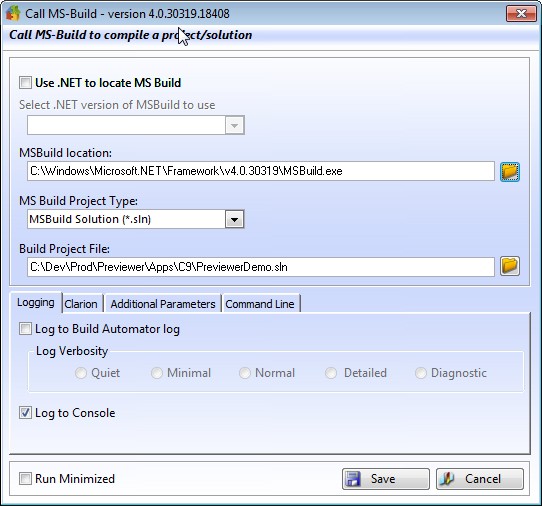
The second option is for you to select the MSBuild.exe manually. To use this option uncheck the "Use .NET to locate MS Build" and the MSBuild location entry and button will now be enabled. Click on the button to select the appropriate version of MS Build. By default it will go to the latest version of .NET that you have installed as a start folder for you to look for the MSBuild.exe.
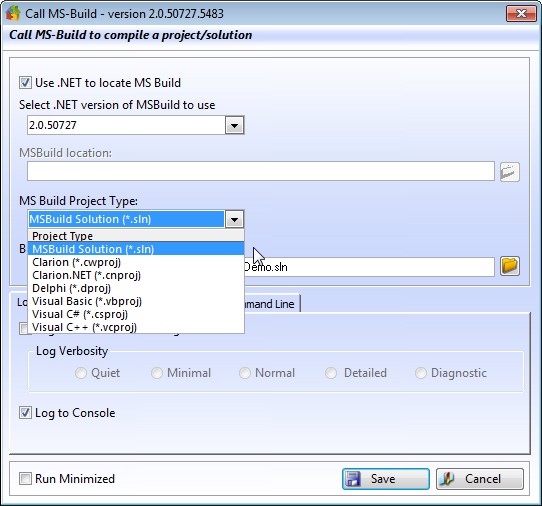
Once you have selected the appropriate way to locate the MS-Build executable, you can now select the MS Build project type that you want to compile. The options you have are MSBuild Solution (*.sln), Clarion 7 (*.cwproj), Delphi (*.dproj), Visual Basic (*.vbproj), Visual C# (*.csproj) and Visual C++ (*.vcproj). Select the appropriate project type from the drop down.
Once you have selected the type, click on the button on the right of the entry for the "Build Project File" This will open a "Select File" dialog for you to pick the correct file to compile.
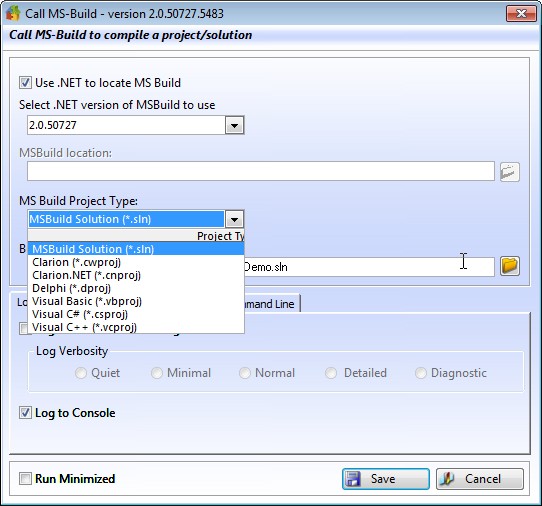
Finally there is a big box for you to enter any additional parameters that you may want. For a simple rebuild to a Release you would need something like:
/t:rebuild /p:Configuration=Release
This will rebuild the target in Release mode. For more information on MS-Build parameters, please check out the online MS Build command line reference. To get more information about the parameters for your particular version, use:
MSBuild.exe /help
That will give you a list of the available parameters for your particular version.
The Clarion tab is only used when compiling Clarion projects or solutions. If you have multiple installs of Clarion 7 and higher, you can select which IDE to use. You can also select what compiler to use if you need to use a version that is installed for the selected IDE.
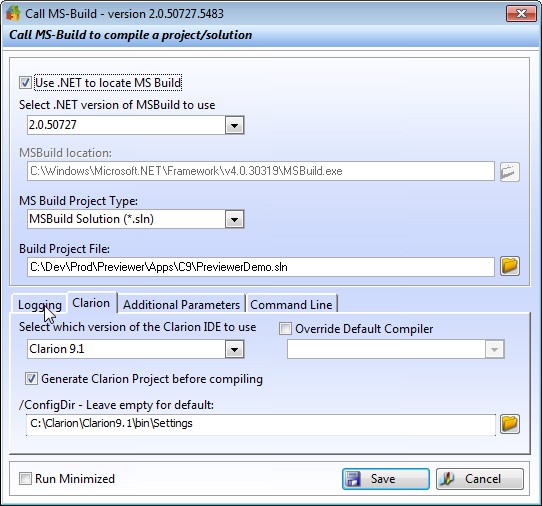
Generate Clarion Project before compiling will call ClarionCL.exe to generate the code. There are limitations: This ONLY works with Clarion Enterprise Edition. The Professional Edition does NOT have the option to generate code using ClarionCL.exe.
If you use /ConfigDir when you run Clarion you can now specify the folder in Build Automator™. Please note that IF you use /ConfigDir without specifying the folder, you still need to use the folder here in Build Automator because it knows nothing about your Clarion shortcut settings, so you need to help by specifying the folder.
Additional web resources for MS-Build:
http://msdn2.microsoft.com/en-us/library/0k6kkbsd.aspx
http://www.codeproject.com/KB/books/msbuild.aspx
http://blogs.msdn.com/msbuild/
